반응형
UITextField나 UITextView에 텍스트를 입력했을 때 기본적으로 패딩값이 주어지지 않아 아래 그림처럼 딱 붙어서 나온다.
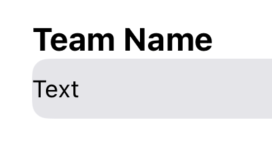
딱 붙지 않고 공간을 주려면 패딩을 넣어줘야 한다.
아이폰에서 Text 받는 방식에는 UITextField, UITextView가 있다.
그런데 이 둘의 패딩 넣는 방식은 각각 다르다..
UITextField 패딩 -> 서브클래싱, leftView, rightView
UITextField 서브클래싱
아래와 같이 UITextField 클래스를 따로 만들어서 textRect, editingRect, placeholderRect 메소드를 오버라이드
- textRect(forBounds:): 텍스트가 표시되는 영역을 조정
- editingRect(forBounds:): 편집 중 커서 위치를 포함한 영역을 조정
- placeholderRect(forBounds:): 플레이스홀더 텍스트의 위치를 조정
class PaddedTextField: UITextField {
    let textPadding = UIEdgeInsets(top: 8, left: 8, bottom: 8, right: 8)

    override func textRect(forBounds bounds: CGRect) -> CGRect {
        return bounds.inset(by: textPadding)
    }

    override func editingRect(forBounds bounds: CGRect) -> CGRect {
        return bounds.inset(by: textPadding)
    }

    override func placeholderRect(forBounds bounds: CGRect) -> CGRect {
        return bounds.inset(by: textPadding)
    }
}

private lazy var addTeamName: UITextField = {
    let textField = PaddedTextField()
    textField.backgroundColor = .systemGray5
    textField.layer.cornerRadius = 8
    textField.font = .systemFont(ofSize: 12)
    return textField
}()
leftView, rightView 이용
더 간단해 보인다.
private lazy var addTeamName: UITextField = {
    let textField = UITextField()
    textField.backgroundColor = .systemGray5
    textField.layer.cornerRadius = 8
    textField.font = .systemFont(ofSize: 12)

    // 좌측 패딩
    let leftPaddingView = UIView(frame: CGRect(x: 0, y: 0, width: 8, height: textField.frame.height))
    textField.leftView = leftPaddingView
    textField.leftViewMode = .always

    // 우측 패딩
    let rightPaddingView = UIView(frame: CGRect(x: 0, y: 0, width: 8, height: textField.frame.height))
    textField.rightView = rightPaddingView
    textField.rightViewMode = .always

    return textField
}()
UITextView 패딩 -> textContainerInset
textField 보다 훨씬 간단하다.
그냥 textView.textContainerInset = UIEdgeInsets()만 하면 된다.
private let textPadding = UIEdgeInsets(top: 8, left: 8, bottom: 8, right: 8)

private lazy var addRules: UITextView = {
        let textView = UITextView()
        textView.backgroundColor = .systemGray5
        textView.layer.cornerRadius = 8
        textView.delegate = self
        textView.isScrollEnabled = false
        textView.isEditable = true
        textView.textContainerInset = textPadding
        return textView
    }()
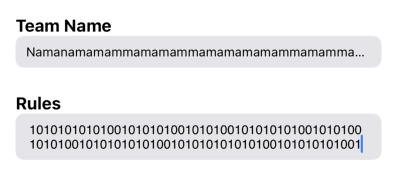
위 UITextField
아래 UITextView
반응형
'DEV' 카테고리의 다른 글
| [iOS/Swift] Swift에서의 For문 (stride, filter, reduce, 범위) (0) | 2025.03.07 |
|---|---|
| [Git/GitHub] .gitignore 파일 Finder에서 보는 법 (0) | 2025.03.06 |
| [iOS/Swift] UITextField와 UITextView의 특징, 차이점 (0) | 2025.03.06 |
| [iOS/Swift] ScrollView 자동스크롤 구현 (feat. LayoutCycle) (0) | 2025.03.06 |
| [Git/GitHub] Fork와 Branch (모르고 Fork를 해버린 날..) (0) | 2025.03.05 |


